

Java and SPARC’d Installation
IMPORTANT: Before you begin, contact Liz (520.743.2488 or lizt@arizona.edu) or Jane (520.909.9373 or jhunterhmc@gmail.com) to obtain your SPARC’d login credentials.
Background: SPARC’d is an application developed at the University of Arizona to help researchers effectively manage their image data. SPARC’d currently operates on the Java platform. In 2026, efforts began to transition SPARC’d to a web-based application for enhanced accessibility. Meanwhile, the Java version remains in use to ensure project continuity. Follow the steps below to install Java and SPARC’d.
Step 1: Delete old versions of SPARC’d
If you have older versions of SPARC’d downloaded to your computer, including “SPARC’d latest 02-27-2023,” please delete.
If you have never downloaded SPARC’d before, please skip this step.
Step 2: Install Java 21
Windows Users:
Click the button below to download Java 21.
The file will appear in your Downloads folder.
Double-click the executable file and follow the prompts.
Mac Users:
Click the Apple menu in the top-left corner of your screen. Select About This Mac and look for the Chip (or Processor) item.
If you have an Apple M-Series (M1, M2, M3, M4, M5), click the button below to download Java 21.
If you have an Intel Processor, click the button below to download Java 21.
A .dmg file will appear in your downloads folder. Double click the dmg file.
A window will appear showing a .pkg file.
Double click the .pkg file and follow the prompts.
Step 3: Download SPARC’d
Windows Users:
Go to GitHub and select sparcd-windows-latest.jar
Mac Users:
Go to GitHub (using the information about your processor),
if you have an Apple M-Series (M1, M2, M3, M4, M5), select sparcd-AppleSilicon.jar
if you have an Intel Processor, select sparcd-macos-latest.jar
All Users:
Many users find it convenient to create a SPARC’d shortcut on their desktop, allowing for quick and easy access to the application.
When opening SPARC’d for the first time, right click the file name, click “open with,” and choose “JavaLauncher.” This will not be necessary the second time.
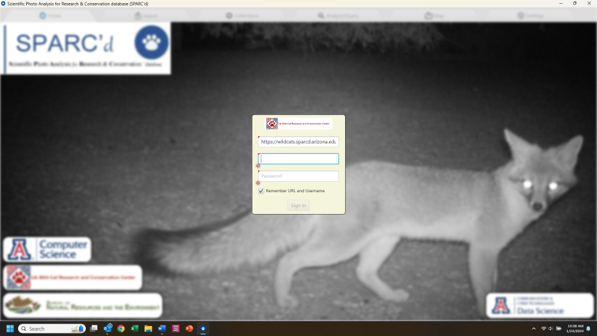
Login using your SPARC’d credentials as follows:
Box 1: https://wildcats.sparcd.arizona.edu
Box 2: USERNAME
Box 3: PASSWORD (Note: password contains blanks)
Step 4: Update SPARC’d Settings
Go to the Settings tab and update the settings as needed:
Date Format: ISO Local Date
Time Format: 24 hour
Location Format: UTM
Distance Units: Feet
Dr. Sanderson’s Directory Compatibility: UNCHECKED
Show Dr. Sanderson’s Output Replicas: UNCHECKED
Automatically select next image: CHECKED
Background Image Loading: CHECKED
Congratulations!
You have completed the SPARC’d installation.
Click here to return to the Training page.